How to Make a Custom Phone Case From Your Photos: The Complete Guide
Picking the photo is the easy part. Here’s how to make sure it prints sharp, survives the camera cutout and still looks good a year from now.
CaseFable Studio · Updated October 19, 2026 · 11 min read
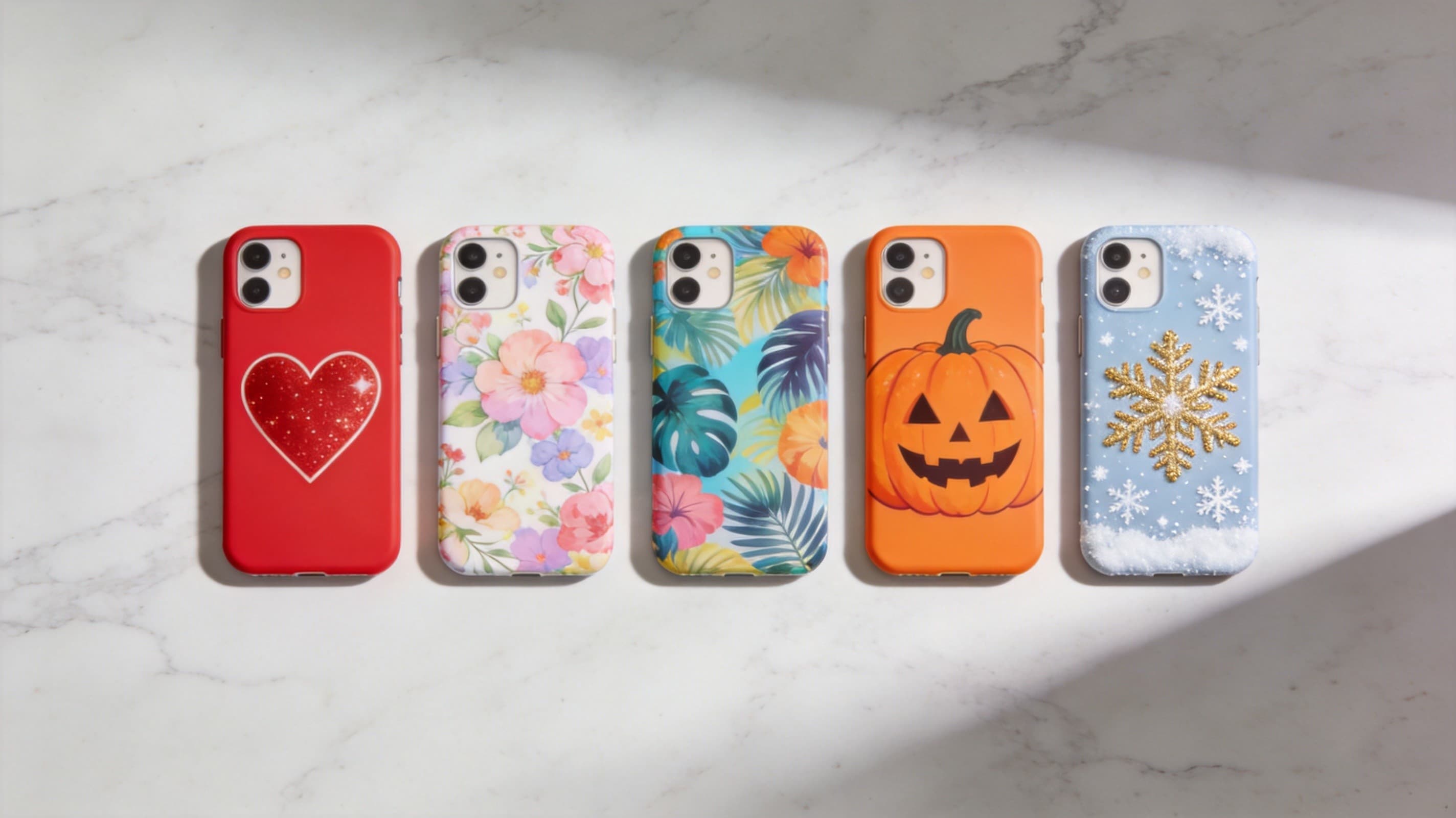
A custom phone case is one of the few things you look at hundreds of times a day. Put the right photo on it and it becomes a small, daily reminder of a person, a place or a moment. Put the wrong one on it — too small, badly cropped, with a face hidden behind the camera bump — and you will be looking at that mistake hundreds of times a day instead.
This guide walks through everything our studio checks before a photo goes to print: how to choose an image that actually works on a phone-shaped canvas, how big the file needs to be, how to crop around the camera, when to add text, and which finish suits which kind of picture. It applies whether you design with us or anywhere else.
1. Choose a photo that works on a phone-shaped canvas
The back of a phone is a tall, narrow rectangle — roughly 1:2 — with a camera module taking up one of the top corners. Most photos are taken at 4:3 or 3:2, so some of every picture will be cropped away. The best case photos are the ones that still make sense after that crop.
What works best
- Portrait-orientation photos. A vertical shot needs far less cropping than a horizontal one, so you keep more of the scene.
- One clear subject. A single person, a pet, a landmark or one object reads instantly from arm’s length. Busy group shots tend to turn into a crowd of tiny faces.
- Space around the subject. A bit of sky, sand, wall or background gives you room to crop without cutting off heads and hands.
- Strong light and contrast. Daylight photos with clear shadows print with more depth than dim indoor shots.
- Simple, textured backgrounds. Grass, water, sky and fabric make lovely full-bleed backgrounds; a cluttered kitchen counter does not.
What to think twice about
- Wide landscape panoramas — the interesting part usually ends up very small.
- Group photos with more than four or five people, unless you are happy for faces to be small.
- Night shots and heavily filtered photos, which often look muddy once printed.
- Images downloaded from social media or messaging apps, which are usually compressed (more on that below).
2. Get the resolution right (this matters most)
Blurry prints are the number-one complaint with photo cases, and they almost always come from a file that was too small to begin with. A phone back is printed at close viewing distance, so every soft edge shows.
As a rule of thumb, aim for at least 2,000 pixels on the long edge. Any photo taken with a phone camera from the last several years — typically around 4,000 × 3,000 pixels — has plenty of detail, even after cropping. The problem is not the camera; it is what happens to the file afterwards.
Original photo from your phone’s camera roll
- Typical quality
- Full resolution
- Use it?
- Yes — best choice
Photo exported from a camera or Google Photos / iCloud at “original” quality
- Typical quality
- Full resolution
- Use it?
- Yes
Photo saved from WhatsApp, iMessage or WeChat
- Typical quality
- Often compressed
- Use it?
- Ask the sender for the original
Image saved from Instagram, Facebook or TikTok
- Typical quality
- Heavily compressed, low resolution
- Use it?
- Avoid if you can
Screenshot of a photo
- Typical quality
- Screen resolution only, often with UI edges
- Use it?
- Avoid
Old printed photo
- Typical quality
- Depends on the scan
- Use it?
- Yes, if scanned at 600 DPI or more
Scanning old prints is worth the effort: a family photo from the 1980s, scanned flat at 600 DPI with a phone scanning app or a flatbed scanner, often makes the most meaningful case of all. Wipe the print, scan it in good even light and avoid glare from glossy paper.
3. Crop around the camera and the edges
The camera cutout is where most layouts go wrong. On almost every modern phone the camera sits in the top-left corner (on the back), and on larger “Pro” and “Ultra” models it takes up a surprisingly big area. Anything printed there is simply cut out.
- Keep the top 25–30% calm. Sky, wall, water or a plain colour works well there. Faces, text and logos do not.
- Place the subject in the middle or lower half. That is also where your hand naturally frames the case when you hold it.
- Leave a margin from the edges. The sides of a case curve around the phone, so details right on the edge wrap out of view. Keep important elements a little way in from every side.
- Check the mirror view. You are designing the back, so left and right are as you see them when looking at the back of the phone — not the screen side.
- Preview on your exact model. An iPhone 16 Pro Max and a Galaxy S25 have different camera layouts; a crop that is perfect on one can clip a face on another.
In the CaseFable design studio you pick your phone model first and the preview shows the camera area, so you can adjust before ordering instead of discovering the problem when the case arrives.
4. Adding text: names, dates and short lines
A few words can turn a nice photo into a personal one — a name, a date, a place, an inside joke. A few guidelines keep text looking intentional rather than stuck on:
- Less is more. One to six words reads beautifully; a full paragraph becomes tiny and hard to read.
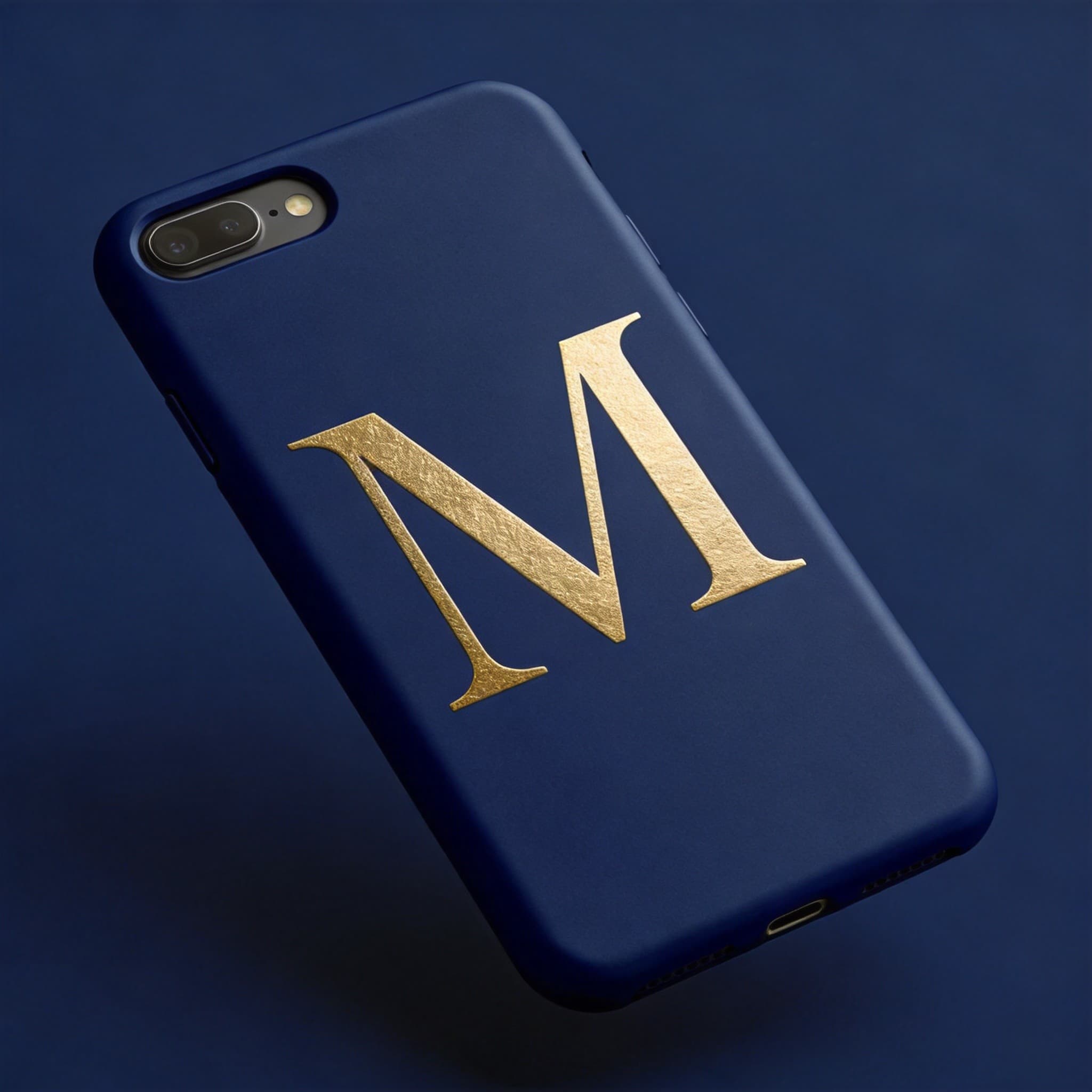
- Pick one typeface. A clean sans-serif or an elegant serif ages better than novelty fonts.
- Watch the contrast. White text on a bright sky disappears. Place text over a darker, simpler part of the photo, or add a subtle shadow.
- Respect the safe zone. Keep text away from the camera area and at least a finger’s width from the edges.
- Proofread twice. Names and dates are the most common typos — and the hardest to live with.
5. Colour: why screens and prints look different
Your phone screen is lit from behind and displays colour in light (RGB). A printed case reflects light and reproduces colour with inks. That means very bright, saturated colours — neon greens, electric blues — can look slightly calmer in print, and very dark photos can lose detail in the shadows.
- If a photo looks dark on your screen, brighten it slightly before uploading — shadows tend to print darker, not lighter.
- Avoid heavy filters. Natural colour almost always prints better than a strong preset.
- Black-and-white photos print beautifully and are a great choice for older or lower-quality images.
6. Choose the right finish for your design
The finish changes how a design looks and how the case feels in hand. There is no single best option — it depends on the photo and how you use your phone.
Matte
- Looks
- Soft, no glare, slightly muted colour
- Feels
- Grippy, hides fingerprints
- Best for
- Portraits, pets, everyday photos
Glossy
- Looks
- Vivid colour and contrast
- Feels
- Smooth, shows fingerprints more
- Best for
- Bold art, landscapes, graphic designs
Soft-touch
- Looks
- Rich, low glare
- Feels
- Velvety and premium
- Best for
- Minimal designs, monograms
Leather
- Looks
- Natural grain, ages over time
- Feels
- Warm, distinctive
- Best for
- Simple marks and initials rather than photos
Our annual plans differ only in finish — Essential (standard matte), Standard (premium soft-touch) and Premium (vegetable-tanned leather) — so you can choose the feel you like and use your five cases on any designs you want.
7. Ideas that make great photo cases
Stuck on what to use? These are the designs we see people come back to again and again:
- A pet portrait — close-up, eye-level, with a plain background.
- A grandparent’s photo scanned from an old print, often in black and white.
- A travel moment — one strong view rather than a collage of ten.
- Your child’s drawing, scanned flat in good light. Kids’ art makes some of the happiest cases.
- A handwritten note from someone you love, scanned and printed as is.
- A wedding or engagement detail — the bouquet, the rings, the venue — rather than a posed group shot.
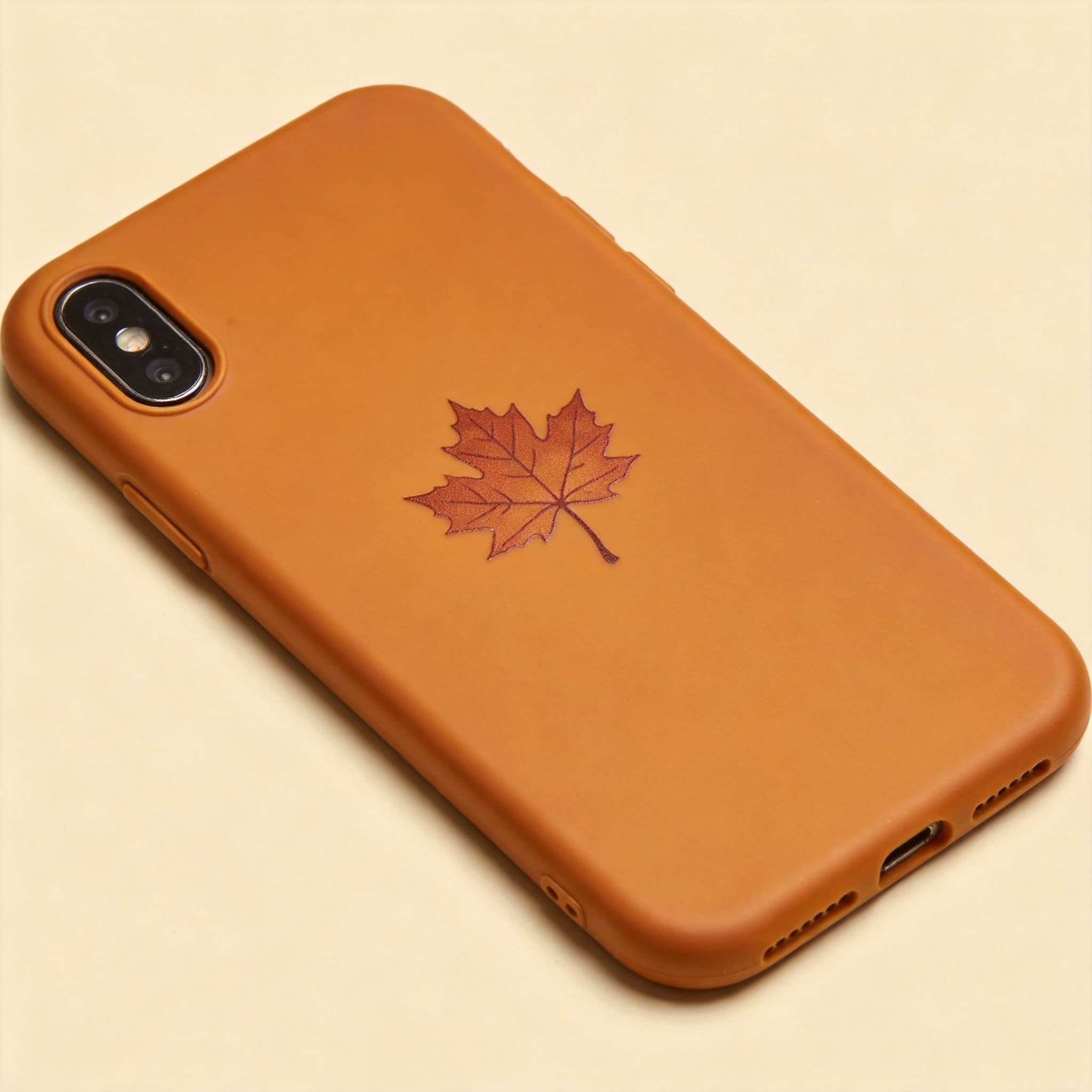
- A seasonal set: spring, summer, autumn and winter versions of the same place, swapped through the year.
That last idea is exactly why CaseFable works as a membership: one annual fee covers five custom cases, so you don’t have to choose one photo for the whole year. Browse our styles for more inspiration.
8. Single photo or collage?
Collages are tempting when you can’t choose, but every extra photo makes each one smaller. On a phone-sized surface, a single strong photo almost always looks better than a grid of six. If you do want a collage, keep it to two to four images, give them a shared colour tone, and keep the most important one in the lower half, away from the camera.
9. Use images you have the right to print
Your own photos, photos you have permission to use, and artwork you created are all fine. Logos, cartoon characters, team crests, album covers and photos taken by someone else are usually protected, and print shops — including ours — may decline them. When in doubt, use something personal: it is almost always more meaningful anyway.
10. Common mistakes to avoid
- Uploading a screenshot or a social-media copy instead of the original file.
- Placing a face or text behind the camera cutout.
- Putting important details right on the edge, where the case curves.
- Choosing a very dark photo without brightening it first.
- Using a collage of many small images.
- Selecting the wrong phone model — always double-check in Settings › About.
- Skipping the preview because you are in a hurry.
Putting it together: a step-by-step checklist
- Find the original photo file (camera roll, cloud “original quality” download or a 600 DPI scan).
- Confirm your exact phone model.
- Open the design studio, select the model and upload your photo.
- Position the subject in the middle or lower half, clear of the camera area and edges.
- Add text only if it adds meaning, and proofread it.
- Pick a case style and finish that suits the photo.
- Check the preview one last time, then order.
Get those seven steps right and your case will look as good in your hand as the photo did on the day you took it.
Frequently asked questions
What resolution does a photo need for a custom phone case?
Aim for at least 2,000 pixels on the long edge. Original photos from any modern phone camera are more than enough; screenshots and images saved from social media usually are not.
Can I use a photo from Instagram or WhatsApp?
You can, but quality often suffers because those apps compress images. Whenever possible, ask for or download the original file instead.
Will part of my photo be hidden by the camera?
Yes — the camera area is cut out of the case. Keep the top corner free of faces, text and key details, and check the preview for your exact phone model.
Matte or glossy — which is better for photos?
Matte is softer, glare-free and hides fingerprints, which suits portraits and everyday photos. Glossy makes colours pop and suits bold art and landscapes.
How long does a custom photo case take to arrive?
CaseFable ships free anywhere in the US, usually within 5–7 business days, and members get priority shipping in about 3–5 days.
Can I make more than one design?
Yes. A CaseFable annual membership includes five custom cases to use across the year — different photos, seasons or gifts for friends.
Ready to make yours?
Upload a photo in the studio and preview it on your phone model in seconds. One annual membership covers 5 custom cases.